· Hasan Alp Güngör
Setting up a new Windows PC in one click: winget and live hardware charts
How I built PcProgramKurucu: installing 73 programs with winget in the background, keeping the window responsive, finding the temperature sensor on Intel and AMD, and scrolling 73 cards smoothly.
- C#
- WinForms
- winget
- LibreHardwareMonitor
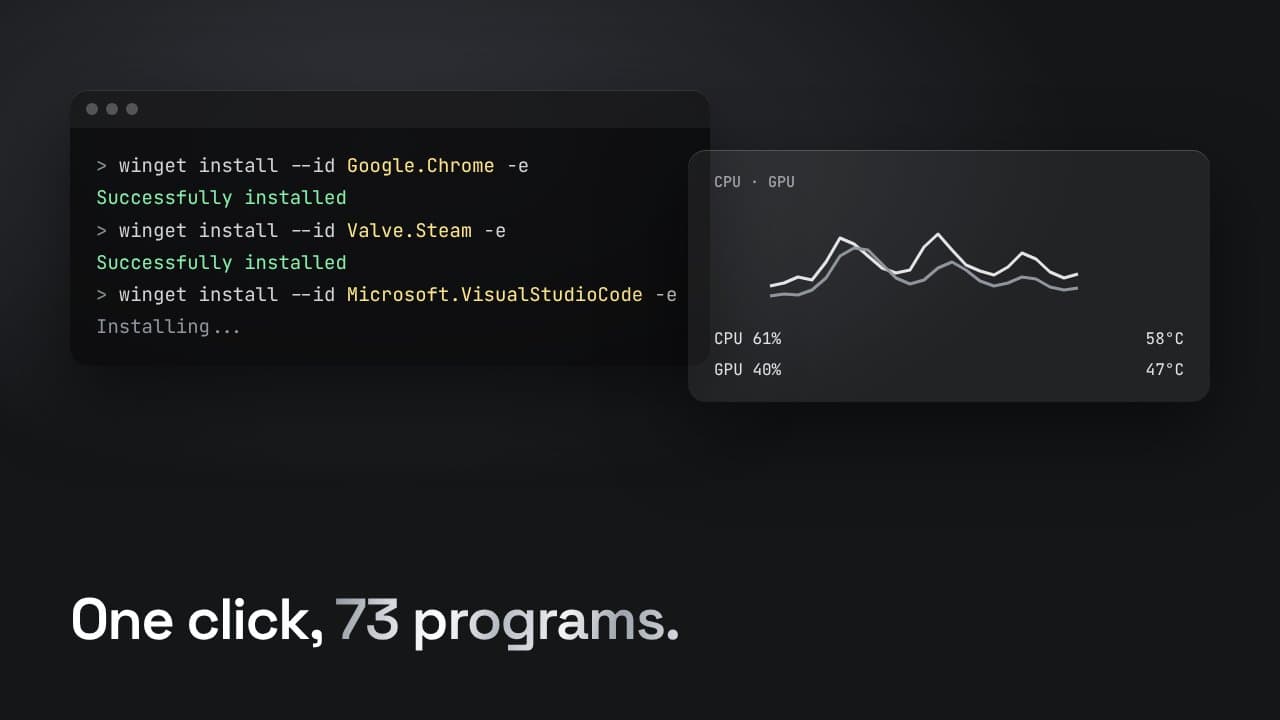
Every time I set up a new PC I did the same thing: open a browser, download Chrome, Steam, Discord and VS Code one by one, and click "Next" through every installer. I wrote PcProgramKurucu ("PC program installer") to turn that into one click. It is a C# Windows Forms app that lists 73 common programs, and next to them shows the PC's hardware in live charts.
winget: installing without the setup wizard
winget, Windows's own package manager, can download a program and install it silently with one command. Every program has an ID in the winget-pkgs repository (like Google.Chrome, Valve.Steam or Microsoft.VisualStudioCode). I matched all 73 programs in the list to their real IDs there. When you press the download button, the app runs this command in the background:
bashwinget install --id Google.Chrome -e --accept-package-agreements --accept-source-agreements-e means exact match, so it never installs a package with a similar name by mistake. The last two flags accept the license agreements up front, so the install never stops halfway to ask a question.
Keeping the window responsive
An install can take minutes. If I ran the command directly, the whole window would freeze until it finished. So I start winget in a hidden console on a separate thread and wait for it with await. Meanwhile the interface keeps working: a side panel shows the program's name, logo and a progress bar. When it finishes I check the exit code, and if it isn't 0 I show winget's own output in an error dialog.
csharpawait Task.Run(() =>
{
    var process = new Process();
    process.StartInfo.FileName = "cmd.exe";
    process.StartInfo.Arguments = $"/c winget install --id {wingetId} -e --accept-package-agreements --accept-source-agreements";
    process.StartInfo.UseShellExecute = false;
    process.StartInfo.CreateNoWindow = true;
    process.StartInfo.RedirectStandardOutput = true;
    process.StartInfo.RedirectStandardError = true;
    process.Start();

    output = process.StandardOutput.ReadToEnd();
    errors = process.StandardError.ReadToEnd();
    process.WaitForExit();
    exitCode = process.ExitCode;
});
The app starts with administrator rights; that is needed both to install programs machine-wide and to read the hardware sensors.
Finding the temperature sensor on Intel and AMD
For hardware data I use the LibreHardwareMonitor library. Reading the CPU load is easy, but temperature had a catch: sensor names differ by manufacturer. Intel CPUs usually have "Core Average"; AMD Ryzen doesn't, and uses names like "CPU Package" or "Core (Tctl/Tdie)" instead. My fix is to try the known names in order and, if none exist, use the first temperature sensor I can find:
csharpstring[] knownNames = { "Core Average", "CPU Package", "Core (Tctl/Tdie)", "Core Max" };
ISensor tempSensor = null;
foreach (var name in knownNames)
{
    tempSensor = cpu.Sensors.FirstOrDefault(s => s.SensorType == SensorType.Temperature && s.Name == name);
    if (tempSensor != null) break;
}
if (tempSensor == null)
    tempSensor = cpu.Sensors.FirstOrDefault(s => s.SensorType == SensorType.Temperature);
The graphics card is easier: on NVIDIA and AMD cards, load and temperature both come under the name "GPU Core". For disk activity I use Windows's own performance counter (PhysicalDisk, % Disk Time). Every value updates once a second, and the charts keep the last 40 readings.
Scrolling 73 cards smoothly
The first version had a separate card control for each program and used Windows's native scrollbar. With 73 cards, scrolling stuttered and the scrollbar kept losing sync with the content. In the end I rewrote the whole list as a single control: I draw every card myself in one Paint call and use my own thin scrollbar. The mouse wheel, dragging the thumb and clicking the track all work, and the list now scrolls smoothly.
The program logos come from Google's favicon service, using each program's website domain, so I didn't have to ship 73 logo files with the app. The app comes as a single exe (its libraries are embedded with Costura.Fody) and checks GitHub for a new version on startup. All the code is on GitHub.